Your words, your language, anywhere.

Google Input Tools official logo

Google Input Tools

Developed by

★ ★ ★ ★ ★
4.4 (2 votes)

Latest Version

Latest

License

Freeware

Operating System

Windows 7, Windows 8, Windows 10, Windows 11

User Rating

4.4/5

Review By

Ravi Thakur

Latest Update

September 15, 2026

File Size

58 Mb

Available languages

Over 80 languages/input methods.

Total Downloads

3 (Worldwide)

Author / Official Website

Google LLC

/

Version

Latest

License

Platform

Windows 7, Windows 8, Windows 10, Windows 11

User Rating

4.4/5

Review By

Ravi Thakur

Updated

September 15, 2026

File Size

58 Mb

Downloads

3 (Worldwide)

Languages

Over 80 languages/input methods.

Screenshots

If you want to type in another language, you should not need to learn an entirely new physical keyboard. Google Input Tools makes multilingual typing more straightforward. It provides transliteration, input method editors (IMEs), virtual keyboards, and handwriting input.

Google currently describes Input Tools as available across Google services, Chrome, Android devices, and Windows. It supports more than 80 languages and input methods.

At the moment, the best choice is the Google Input Tools Chrome extension for people using Windows. This review looks at frequently asked questions such as what Google Input Tools does, how to install it, the languages and input methods it supports, its limitations, and whether it is a suitable option for Windows users.

What is Google Input Tools?

It is a collection of multilingual typing tools from Google. Instead of simply changing the physical keyboard layout, it can convert phonetic typing into another script. Also, it provides virtual keyboards, offers IMEs, and supports handwriting input.

For example, if you want to type in Hindi, then simply type a word phonetically using Latin characters. It can deliver Hindi-script suggestions.

Google specifically describes transliteration as converting the sound of text between writing systems rather than translating its meaning. The platform supports several input approaches.

Google’s official documentation lists IMEs, transliteration, virtual keyboards, and handwriting. Handwriting is specifically available through the Chrome extension. This tool is available for Google services, Chrome, Android devices, and Windows.

Google Input Tools Key Features

Transliteration

It is one of the most useful features for people who know how a word sounds but do not have the target script on their physical keyboard.

For example, if you enter a phonetic form such as “namaste,” then you can see many Hindi suggestions, and you can select a Hindi suggestion.

This makes it practical for students, writers, families, and professionals who regularly switch between English and another language.

Input Method Editors

IMEs provide a more structured way to enter languages that require conversion or composition. They include IMEs for languages such as Chinese, Japanese, Korean, Dutch, French, German, Italian, Portuguese, Spanish, and Vietnamese.

Virtual Keyboards

This displays characters on screen so users can select them without using a physical keyboard. This is particularly useful when typing an unfamiliar language or using a shared computer.

Handwriting Input

The Chrome extension supports handwriting input. Users can draw characters with a mouse or trackpad and select the desired character from Google’s suggestions.

Custom Dictionary

Google Input Tools for Windows can remember corrections and maintain a custom dictionary for new or uncommon words and names. This can make repeated multilingual typing more suitable.

Keyboard Shortcuts

The Chrome extension supports keyboard shortcuts for switching between input tools and toggling the active tool. The official documents list shortcuts, including Alt+Shift for moving between input methods and additional shortcuts for Chinese IMEs.

Google Input Tools User Interface & Performance

It keeps the interface relatively simple because it is primarily an input utility rather than a standalone writing application.

For Chrome Users, you install the extension and open Extension Options to select the languages and input methods you want. The selected tools can then be activated from the extension icon while typing on supported webpages.
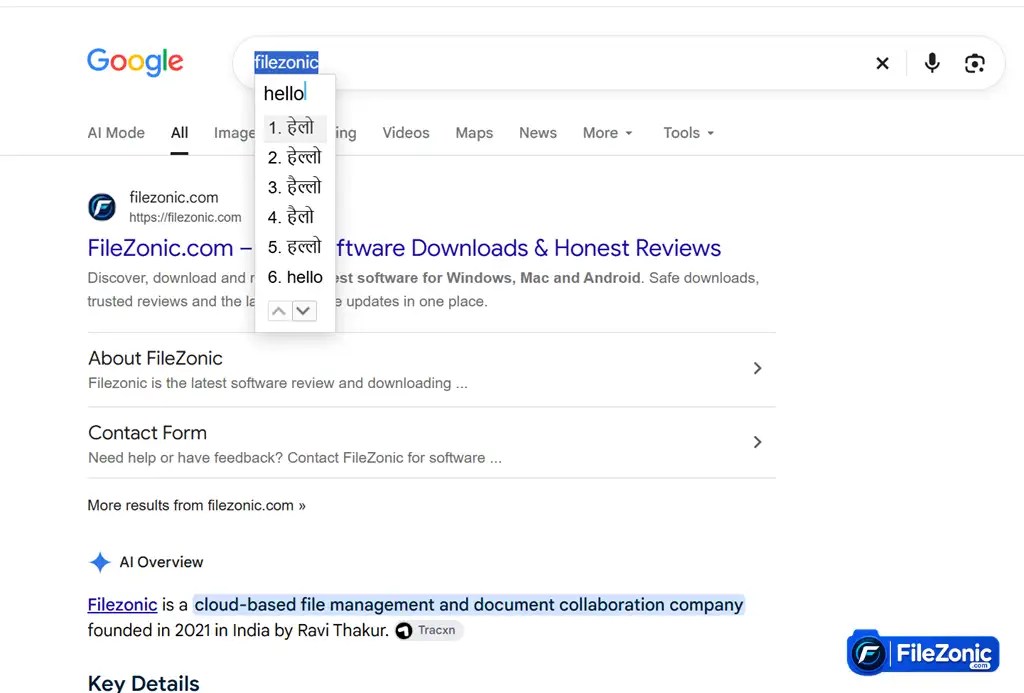
Google Input Tools transliteration feature

The approach is beginner-friendly. There is no large dashboard to learn. Users can add, remove, and reorder input tools from the options page.

The main limitation is that the Chrome extension is tied to browser input. The security restrictions prevent it from assisting with the Chrome address bar, Chrome Web Store, other Chrome extensions, and Flash applications.

Google Input Tools is a lightweight and simple typing tool rather than a resource-heavy desktop application. The Latest Chrome extension is only 842 KB according to the Chrome Web Store listing.

Its performance depends more on the browser, webpage, input method, and language than on demanding local processing.

This extension model is suitable for normal transliteration and keyboard use. Yet, it is not developed to replace a complete Windows-wide input system in every application. Also, some webpage input areas cannot be supported because of Chrome security restrictions.

Who Should Use It?

Google Input Tools is a good choice for:

  • Students who write in multiple languages.
  • Professionals communicating with international customers or colleagues.
  • Users who prefer phonetic transliteration over learning keyboard layouts.
  • People who regularly type in Google services.
  • Chrome users who need multilingual typing on websites.
  • Casual users who want a free and lightweight solution.

It is less suitable for someone who requires a fully system-wide Windows input application with extensive custom keyboard control.

Conclusion

Google Input Tools remains a useful multilingual typing solution, mainly for Chrome and Google-service users. Its biggest strength is flexibility. Users can choose transliteration, IMEs, virtual keyboards, or the handwriting feature.

The current Chrome extension is actively maintained by Google, and it continues to document a broad range of supported languages and input methods.

But there’s an important caveat for Windows users. Google officially supports Windows, but the current public documentation doesn’t provide the same level of detail regarding a standalone Windows installer as users might expect from traditional Windows software.

Across the board, Google Input Tools is a strong free option for multilingual typing in Chrome and Google services. It is more useful for transliteration.

Users who require system-wide keyboard support across many Windows applications should consider Microsoft’s built-in language tools or a dedicated multilingual keyboard platform.

✔ Strong multilingual support.
✔ Excellent transliteration.
✔ Virtual keyboard and handwriting support.
✔ Lightweight Chrome extension.
✔ Free to use.

✘ Not available everywhere in Chrome.
✘ Hardware requirements are unclear.

Frequently Asked Questions

It is a pack of multilingual typing tools that includes transliteration, IMEs, virtual keyboards, and handwriting input.
Yes. Google provides the Chrome extension without a listed purchase price.
Yes. Google’s main Input Tools page lists Windows as a supported platform. Yet, the current site does not clearly specify a modern standalone Windows installer package.
Users can download it from the official Chrome Web Store. You can also download it from my website by clicking on the “Download Now” Button.
Yes. Google officially documents Hindi transliteration and keyboard input.
No. Transliteration changes phonetic input from one writing system to another. It does not translate the meaning of the text.
Yes. Google maintains an official Chrome extension. Currently listed as version 102.
Not officially specified by the developer. Google’s current Input Tools documentation specifically identifies Chrome for the browser extension.
Yes. It is available online and offline. But the current Chrome extension does not work offline. The Chrome OS extension can work offline, while the Chrome browser extension cannot.
Yes. The official Chrome Web Store listing identifies Google as the developer. Also, the developer has disclosed that it will not collect or use user data through the extension. Users should still install it from the official store and review permissions.
Video

Recommended

Mozilla Firefox download

Mozilla Firefox

NEW

Open Source

grammarly download for windows

Grammarly

Subscription

Advance Hindi Dictionary

Advance Hindi Dictionary

Freeware

hinkhoj hindi english dictionary

Hinkhoj Hindi English Dictionary

Freeware

Google Chrome official browser logo

Google Chrome

Freeware

adblocker ultimate

AdBlocker Ultimate

Freeware

Leave a Reply

This site uses Akismet to reduce spam. Learn how your comment data is processed.

Discover more from FileZonic.com

Subscribe now to keep reading and get access to the full archive.

Continue reading

Report Google Input Tools

Help us keep FileZonic accurate and secure. Use this form to report broken download links, incorrect versions, spelling or grammar mistakes, malware, outdated software, copyright issues, or any other problems you find.

Share Google Input Tools

Software License Types

Each software is released under license type that can be found on program pages as well as on search or category pages. Here are the most common license types:

Freeware

Meaning: The software is completely free to use, but its source code is not available.

Examples: Google Chrome,  Adobe Acrobat Reader, Skype

Description: This software is completely free to use.

Open Source

Meaning: The software is free to use, and its source code is publicly available.

Examples: VLC Media Player, WordPress, GIMP

Description:This software is open source, and its source code is publicly available.

Shareware

Meaning: Free for a limited time or with limited features.

Examples: WinRAR, Internet Download Manager (IDM)

Description: This software is available as a trial version. A license may be required for full use.

Trial

Meaning: Free to use for a limited period.

Examples: Adobe Photoshop Trial, Microsoft 365 Trial

Description: This software provides a free trial version for a limited time.

Demo

Meaning: A limited version intended for demonstration purposes.

Examples: Demo versions of games

Description: This software is available as a demo with limited functionality.

Paid

Meaning: A license must be purchased to use the software

Examples: Microsoft Office, CorelDRAW

Description: This is commercial or paid software and requires a purchased license for use.

Freemium

Meaning: Basic features are free, while advanced features require payment.

Examples: Zoom, Canva, Grammarly

Description: This software offers basic features for free, while premium features require a paid subscription.

Subscription

Meaning: The software is used through a monthly or annual subscription.

Examples: Microsoft 365, Adobe Creative Cloud

Description: This software is available through a subscription-based licensing model.

Security Status

At FileZonic, your security is our priority. Every software listing is reviewed and assigned a security status to help you download with confidence.

Safe & Secure

This software has been reviewed by FileZonic and shows no known security risks. It is considered safe to download and install.

Verified by VirusTotal

This software has been scanned with VirusTotal using multiple antivirus engines. No significant threats were detected during the latest scan.

Unknown & Suspicious

This software has not been fully verified or may have received suspicious reports. Scan the file before installation and proceed with caution.

Note:- Security information is provided for informational purposes only. FileZonic does not guarantee that any software is completely free from security risks. Always keep your operating system and antivirus software updated before installing any application.